
 Snow Leopard has arrived and we know how Important is it for you to upgrade. The excitement of the OSx86 has risen to levels where every one needs to run the latest Mac OS X and Snow Leopard is but obvious.
Before you start – You should have an existing OSx86 running. Follow the Guide Here: Install OSx86 Mac on PC to do that.
Update: We have 6 ways to Install Snow Leopard on PC.
If you are looking for Installation from USB: Install Snow Leopard on PC using USB, or virtualization: How to Install Snow Leopard on VMWare, Install Snow Leopard on VirtualBox
In the following tutorial we will show you how can you can Install the latest Snow Leopard (build 10A432 GM release, the Retail version) on your PC which has existing MAC OS X 10.x.x running.
Lot’s of sites have been consulted to prepare this guide. This guide might not be perfect yet (no guide is perfect, yet) but i`ll try my best to improve it within few days, meanwhile if you face any issues, leave your comments, I`ll try to solve any issues that you might come across.) UPDATE: Now, you can use a perfect guide that supports installations from Flash Drive too (8GB): Install Snow Leopard on PC using USB.
We need two disks. Why ? – Snow Leopard needs a Leopard Install — One HDD with Leopard already installed and Second hard disk for Snow Leopard.
Before you begin, download the pre-requisites –
- Tools – MediaFire RapidShare
- Kexts – MediaFire RapidShare
- Chameleon 2.0 + EFI 10 – MediaFire RapidShare
- Chameleon 1.0 + EFI 10 – MediaFire RapidShare
- Misc. – MediaFire RapidShare
- Mac OS X 10.6 Snow leopard Retail build 10A432 (As ususal, we won’t post links, google it)
Let’s Roll
Step 1. Preparing the New Disk –
Make sure you have connected your second “New” Hard Disk or Flash Drive.
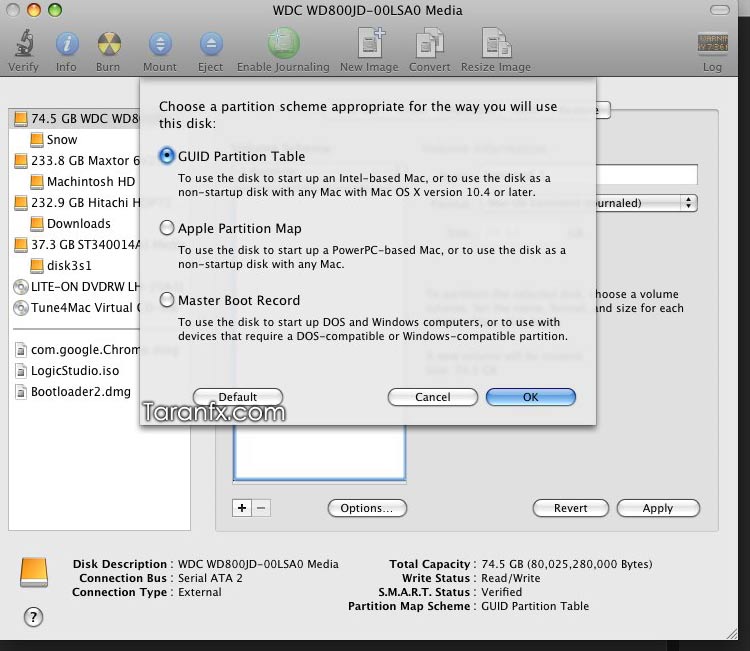
Boot into Leopard, launch Disk Utility from Spotlight. Partition your New disk with GUID partition scheme. Name the partition e.g. “New”. Now set yourself as the owner by running the following at drive’s Root.
sudo –s
chown 0:0 /Volumes/New
Step2. Installing DMG –
Now, Mount the Snow Leopard DMG File.
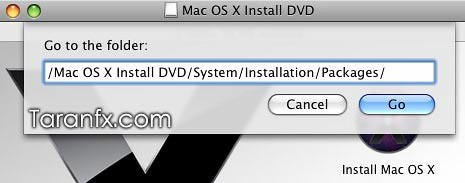
Next, Installer window will pop-up, click on the free space anywhere in window and press key sequence – CMD + Shift + G . A small window will appear on top of the existing window. Here, type “Mac OS X Install DVD/System/Installation/Packages/”, and Go.
In the next window, locate the “OSInstall.mpkg” and double click this package file to start Snow leopard Installation.
Note– Default “OSInstall.mpkg” works for GUID partitioned drive only. If you need to install on MBR, then google for Modified OSInstall.mpkg for MBR, download modified one and replace with default one.
Step 3. Customizing Install –
Go through the options and select your New drive. De-select all the stuff you don’t need like Printers, Languages, other drivers etc.. and wait for it to finish. It should take 10-20 minutes.
After its done installing, Don’t Reboot!
Now step 4. and onwards, we will install Bootloader and some important drivers (KExts), Patch DSDT and Install certain important system files, so, bear it with me.
Step 4. Installing BootLoader –
Unzip the Chameleon Bootloader, Install the “Chameleon-2-1.0-r431.pkg“ 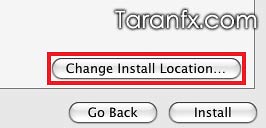 and then “Chameleon v2 Snow Leopard Support.pkg“ to the New Drive.
Note – If Snow Support Package Shows an Error, Then Follow Step 5.
IMPORTANT – If Chameleon 2.0 gives you Kernel Panics then try reinstalling with Chameleon 1.0
Step 5. If you are using PCEFI bootloader on your existing OSx86 system then “Chameleon v2 Snow Leopard Support.pkg” will NOT serve the purpose.
In this case, you have two options:
Option 1. Either install the “Chameleon-2-1.0-r431.pkg” over your current 10.5.x Installation then reboot and do the process again (from Step 1). or
Option 2. Launch the “ShowAllFiles“ (included in “Tools”) and click Show. Then Navigate to the root of your New Drive and delete the “boot” file you see and replace it with the boot file included System Downloads. After replacing the boot file again launch the “ShowAllFiles“ and click Hide. Continue to Step 6.
Step 6. Patching DSDT –
From the downloaded Tools, Open the DSDT Patcher. Select “Darwin/Mac OS X” in Operating System, then select DSDT Patch in options and before hitting the Run DSDT Patcher button make sure to change the destination to “New” Drive.
Step 7. Installing KExts (Drivers)-
this assumes that you had downloaded all Kexts that might be needed for your system’s compatiblity. Place all the “kext files” in “/New/Extra/Extensions”, and copy the Extensions folder in Extra to the desktop, and drag it to “Kext Utility“. “Kext utility” will actually repair your permission and generate a new Extension.mkext. Now, Move the Extensions folder and the extension.mkext back to “/Snow/Extra“
Step 8. Configuring boot.plist with EFiStudio –
Launch EFiStudio and look for your Display/Video Card through the drop down menu. Click add device and you will see some numbers, copy them.
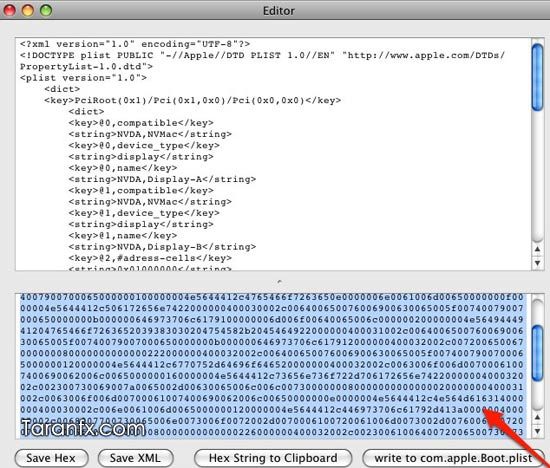
Add the following XML to your com.apple.boot.plist in /New/Extra.
<key>Graphics Mode</key>
<string>1280×1024×32 </string>
<key>device-properties</key>
<string>–number you got with EFiStudio—</string>
Save and Exit. Put the SMBios.plist into /New/Extra.
Update: Step 9 added
Step 9. If you added any driver kext to /New/System/Library/Extension, This step will rebuild the Extensions.mkext cache while booted in Snow Leopard. Reboot and go to Single User mode by typing the flag -x32 –s
Type the following commands:
/sbin/fsck -fy
/sbin/mnt -uw /
kextcache -v 1 -t -m /System/Library/Caches/com.apple.kext.caches/Startup/Extensions.mkext /System/Library/Extensions/
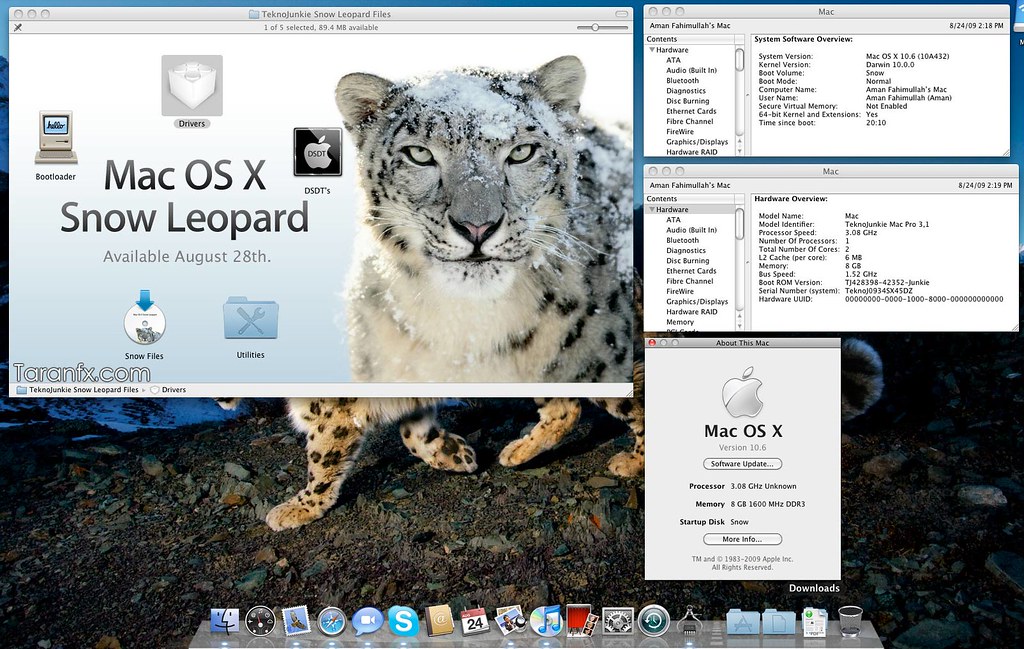
Now Reboot and Fall in Love with the Snow Leopard –
Tip: In case you need quick assistance, contact me on Twitter: @taranfx
UPDATE 1.
Basic Troubleshooting Guide
As promised, I added this section to give out better troubleshooting in case of any issues you might have come across.
For those who are getting Kernel Panics try to boot in 32 bit Mode + Safe mode using following Boot flag.
-x32 –v –x -f
Kernel Panic (IOATAFamily.kext) – Go to your New HDD , navigate it through /System/Library/Extensions and delete IOATAFamily.kext or simply replace IOATAFamily.kext with a patched kext from your Leopard installation or from netkas. If that fails , simply delete this kext. You’ll lose ATA support , however it would still install on your SATA drives. Just make sure its set to AHCI instead of IDE
Generic Kernel Panic on CPU – This problem is related with Chameleon V2. Its recommended for you to use PC_EFI v9 with a patched boot file.
Kernel Panic (generic CPU error) – It occurs if you have an Atom processor or some of the very old boards. The only way to fix it by using PC_EFI v9. Its kind of simple to do , all you have to do is download this installer and boot file for Snow Leopard. Its bit old school. To do this firstly , you’ll have to download PC_EFI v9 installer and this boot file from it. Install this boot loader to your USB Drive (be sure to change its destination) and replace the boot file with this patched file. Be sure to follow rest of the guide such as generating extensions.mkext and so on and so forth. Its just that instead of Chameleon , you’ll have to use PC_EFI v9.
Another thing which I’ve noticed that it occurs when you do a -f. I think its related to permissions of the kext. Do refer to the guide up on how to generate extensions.mkext for both /Extra and /System/Library/Extensions and how to fix permissions
Reboot loop – It clearly means your processor is not supported for instance if you’re like me , still on a Pentium D. For this you’ll have to grab a patched mach_kernel.
CMOS Bug – If you get an error on BIOS after you’ve installed Snow Leopard (this includes BIOS settings have changed or other strange BIOS errors) This is a known issue and it requires your DSDT to be patched. Again you can check out the guide below which I’ve included on how to fix it
Disk Utility Permission fix error – If you get this error in Disk Utility , “ No Installer packages can be found for this disk” whenever you want to verify permission and fix permission. This is caused when you run Snow Leopard installer within Leopard itself. Its a simple fix. You’ll have to re-run BSD.pkg , it could be found in /Volumes/Mac OS X Install DVD/System/Installation/Packages or /Volumes/OSX86/System/Installation/Packages . Just run it and voila it should be fixed ! Now you can use Disk Utility to repair permissions !
UPDATE 2. More Troubleshooting Tips
- If you are stuck on Waiting for DSMOS then simply delete the DSMOS kext in Snow/Extra/Extensions but make sure you must have FakeSMC kext.
- If you are stuck on RTL8169E error: Disable Hardware LAN in your BIOS and boot again. I’m making a list of it, so stick with us.
- If you have an IDE drive or your laptop contains IDE drive then Install AppleIntelPIIXATA.kext by Netkas to make your ATA/IDE work in Snow Leopard. This kext is useful for ICH6/7/8/9/10 with ahci disabled and for lappies too. This kext also helps IOATAFamily related error causing Kernel Panic.
UPDATE 3: Replacing MACH_KERNEL (for Pentium D, Celeron, P4)
- Modbin Kernel, Tools, Kexts, Chameleon 2.0 And Boot file Download Here
- SMBios.plist Download Here
If you have any issues, refer to this one
Update 5: Wifi driver
For Fixing WiFi: Intel 3945 Wireless Driver for Snow Leopard
Version History:
1. Added Step 9, Basic Troubleshooting
2. Added Support for Flash Drives.
3. More Troubleshooting Tips
4. Replacing MACH_KERNEL
5. AMD Install Support
Tip: In case you need quick assistance, contact me on Twitter: @taranfx
loading...
loading...
You wrote:
“We need two harddisks. Why ? – Snow Leopard needs a Leopard Install.”
FYI: Snow Leopard is installable without Leopard being present.
loading...
loading...
I followed this tutorial to the dot. It booted up into that “Welcome!” video and then proceeded to go into the set up. At the point of registering – like step 4 or 5 – it goes to the “You need to restart your computer” kernel panic. HELP! SO CLOSE!
loading...
loading...
do you need two hard drives for this? cuase my computer has two but one hard drive has windows and the other is osx leopard.
someone please reply i want snow leopard so bad hahaha
loading...
loading...
@DCJ001
This method is for installing on PC, not on MAC
@Travis
Yes, right now it does, I’m experimenting and trying to findout a way by which it can be done with one harddisk. For the meantime you can use a USB external HDD. (get it from a friend and get going)
@Ben
Were you at step 5?
And can you give me the error details of kernel panic.
loading...
loading...
Isn’t it illegal??
loading...
loading...
fuck you
loading...
loading...
Not on YOUR step 5. I had done everything on the tutorial and rebooted. It went though that “Welcome!” video and I was to the point of setting up my network and registering my product. After about 4 or 5 windows. Then the screen would blacken, and something popped up saying: You need to restart your computer. Press and hold the power button until it turns off and then push the power button again. I do and on the next boot up I find that my BIOS has been reset to the original settings, including AHCI being disabled.
loading...
loading...
I am having a similar problem as @Ben here, although I am not able to get into the “Welcome!” video. I get the blackened screen with saying restart right after I install and try and boot into it. I have tried -x, -v, and -s, but nothing works. Any suggestions?
loading...
loading...
@ Ben, Chris
Added few troubleshooting steps and Step 9.
Try them, hope that helps.
My bad, for me it worked without them, but on experimenting found few exceptions scenarios like yours, so will keep on improving in future based on comments.
loading...
loading...
sir ,it james
i install the retail dvd (snow leopard )to my intel machine having graphic card enabled kexts (shown in syatem utility) but i did not get the playback on itd dvd player as well as i am not getting the welcome video …
please help
raikkee@gmail.com
loading...
loading...
@Chris Your network card is not supported, find out how to set the screen resolution to 640×480 and it will bypass the welcome screen
loading...
loading...
Hi you said in trouble shooting you need a patched mach_kernel if your running a older chip like a Pentium D? I have a older Extreme Edition Pentium D 3.2GHZ I think its Dual Core haha showing my ignorance yeah sorry a bit new to the whole mac on PC business.
Where do you find a patched kernel? and once you have one where do you put it????
I have a Drive partitioned in 2 parts one with XP and the other with IPC 10.5.6 I have followed all the guides partioned a new drive separate to the other one as GUID done the install etc
I copied all the kexts from the extension folder on my ipc10.5.6 install to the new snow drive when i followed the steps by copying to desktop and verfying with EFI Studio i got to the end and when it verified and tried to create the new Extension.mkext. it couldn’t do it??? As in it didn’t work and i only had a Extensions folder on the desktop?? Will this cause a problem? I haven’t rebooted yet??
Also in EFI Studio in the drop down menu my graphics card is not there?? I am running 2x Nvidia GeForce PCIE 9500 512mb cards?? I do have the kexts and installers for it but not sure how to do it??
Also a little strange but the com.apple.boot.plist in my computer in: /Snow/Extra.
Is not there??? Where do i find it??? Or is it created once you use the app??
Sorry for the long questions? I have never done something like this and have very little Mac knowledge.
I work in Post-Production and have been editing on PC’s for 10 years using AVid a friend introduced me to Final Cut Pro on a Mac and i fell in love with it so i am hoping to get this system up and running to begin editing on Snow Leopard???
Any help from experts in these areas i would be so grateful =)
Tim James
Auckland,
New Zealand
loading...
loading...
Pentium D may not work, It works with latest Core 2Duo. Even Core Duo doesn't. The patched Kernels are not available yet. But as soon as they are available, i`ll update this guide.
follow me on Twitter, I can give heads up.
loading...
loading...
Hey anyone help me out my issue as i earlier describe on this site.
Thanks in advance
loading...
loading...
For anyone on a Pentium D (like me) using the linked-to Mach.432 kernel:
1. unrar
2. copy mach_kernel.432 to root of new SL drive (i.e. /Volumes/New)
3. in Terminal, type:
cd /Volumes/New
//change directories to the root of your SL install//
sudo mv /Volumes/New/mach_kernel /Volumes/New/mach_kernel.original
//back up the SL kernel as mach_kernel.original//
sudo ln -s /Volumes/New/mach_kernel.432 /Volumes/New/mach_kernel
//creates a symlink to the modified kernel//
Now you have a symlink directing programs that require calling mach_kernel (VMWare Fusion) to your modified kernel without having to destroy the original kernel. I like to keep the original kernel in case I upgrade my cpu later and want to run vanilla.
loading...
loading...
I’ve followed the guide by still having issues.
I’m running a Asus P5W DH & a Core 2 Duo processor. I would like to boot to snow leopard fully without using the option to tab down? I just wish someone had a setup DVD like the many distros out there. Any help will using the SL retail would be a great help on a non mac. I’ve had the spinning black wheel, the flashing cursor at the boot stage, and more recently kernel panic.
Please help.
loading...
loading...
boot with “ignore caches” via chameleon 2.0
loading...
loading...
Hi Taran,
I have an iMac 10.4.11 and a Vista 64-bit machine that I assembled recently. The PC is a Quad core with Intel DG45ID mobo with HDMI and G45 chipset. The 2 systems are networked so that I can access shared folders from either of them. I want to install SL 10.6 on the PC. How will I go about it? Can I do it without having Leopard on my iMac? I have a Mac Box set DVD.
Graphics card on PC is nVidia 9800 GT on PCI xP.
Krishna
loading...
loading...
yes. This will work. All you need a Mac is for preparing installation disc, it doesn't matter if it's older version.
loading...
loading...
if my pc want install snow leopard…..mac osx leopard has already???
loading...
loading...
I guess that's not english. Can you be bit more clear?
loading...
loading...
hey what patched mach_kernel did you use for the pentium d … i am in the same place as you ..
loading...
loading...
I've updated the guide to include how to do update MACH_KERNEL, look for “Update 3” on this page
loading...
loading...
Hi,
I have tried many times and i still failed. I always get the restart screen. I am not sure if that screen mean Kernel Panic. I had google some and i am not the only person to get this message, some said to those who get the message do a -v -f. But i really don’t know how to do that… I am very new to mac. When i boot up and I saw the snow leopard frog asking for stating option, (ifi i press, i can choose which hdd i wanna boot) if i don’t, i suppose it will boot up to SL. And it go straight to the error rmessage, i can’t press anytihng.
And i got some confuse to the guide,
Question 1
Do i have to name my new hdd to be installed with Snow leopard as ‘New’ or i can name it anything i want?
Question 2
Step 3 said “Go through the options and select your New drive. De-select all the stuff you don’t need like Printers, Languages, etc.. and wait for it to finish. It should take 5-10 minutes.”
I go through the option under Customize and i don’t see any printers or languages there. all the option come with funny wording and i don’t know if i need them?
Question 3
Step 7. Installing KExts (Drivers)-
this assumes that you had downloaded all Kexts that might be needed for your system’s compatiblity. Place all the “kext files” in ”/New/Extra/Extensions”, and copy the Extensions folder in Extra to the desktop, and drag it to “Kext Utility“. “Kext utility” will actually repair your permission and generate a new Extension.mkext. Now, Move the Extensions folder and the extension.mkext back to “/Snow/Extra“
This part is super confusing. Do I drag all the *.kexts file that download from your site and put inside Extensions folder? And after that, I drag to desktop.
Then from desktop I drag to ‘Kext Utility’?? what does this mean? Do i drag to the “kext utility” folder that i downloaded or?
And it also mention that it will generate new Extension.mkext. I can’t see it, after i run Kext Utility… it mention completed or whatever. I dont’ see a new Extension.mkext at desktop or “Kext Utility’ folder.
Question 4
Step 8. Configuring boot.plist with EFiStudio –
Launch EFiStudio and look for your Display/Video Card through the drop down menu. Click add device and you will see some numbers, copy them.
Under this Step, what if i don’t see my graphic card model? do i download from anywhere or do i choose the nearest model?
Question 5
What is step 9 all about?
Thank you. your help is really really appreaciated.
PS : Sorry for my home-made english.
loading...
loading...
1. Yes, you can name it to anything else. Keep it consistent.
2. Can you list them ? These are the packages and drivers you need for your hardware.
3. Drag the “extensions” folder to “kext utility”
4. If it isn't listed, what I would do is chose the nearest model.
5. Step 9 is all about rebuilding additional kexts that you introduced in step 7
loading...
loading...
I was trying to work this setup
I am currently using duel boot with windoes 7 and mac os x 10.5.6 and it works good
now i am trying to upgrade to snow leopard by following your insturctions but i ran into problem:
In step 2 where you ask to Mac OS X Install DVD/System/Installation/Packages i press go it says file can not be found
I am using USB hard drive to install this process and I followed guidlines for usb flash drive thingy.
also I cant locate OS Install mpkg can you help me on the location?
loading...
loading...
OSInstall.mkpg is located in “Mac OS X Install DVD/System/Installation/Packages/”
loading...
loading...
I'm having the same problem as nil911. What do we do when the Mac OS X Install DVD/System/Installation/Packages folder can't be found?
loading...
loading...
Excellent, a very good guide. I had installed mac osx Ipc 10.5.6 as well as i also succesflly installed mac osx snow leopard on my desktop. I have an intel Core i7 920 overclocked at 3 ghz, with 3 GB RAM and 2 250GB and 80 GB HARD DISK. I installed Snow leopard on 80 GB hard disk. I would like to ask can i add osx 10.6 to windows boot manager by easy Bcd mentioned in earlier tutorial. Also, since i have mac 10.6 installed can i now delete mac 10.5
loading...
loading...
hi, will this work with AMD 64×2 5200 processor??i have a customized desktop pc…
loading...
loading...
Check Update 4 on this page.
loading...
loading...
Ayoosh, at this moment EasyBCD will not work with SL coz we use Chameleon here. As far as deleting goes for Leopard, you can do that coz now your Primary bootloader should be chameleon [confirm this]
loading...
loading...
hi, will this work with AMD 64×2 5200 processor??i have a customized desktop pc…
loading...
loading...
your disk utility permissions fix DOES indeed take the error away, but it doesn't actually fix the issue, disk utility won't repair permissions at all now
loading...
loading...
boot with ignore caches via chameleon 2.0
loading...
loading...
Sorry if duplicate. I have Mac 10.4.8 running on VMWare. I have a second SATA hard drive that I formatted as required. On this hard drive I have two partitions. One for the snow leopard install, another that I copied a legal copy of Snow Leopard. Intention is to install Snow Leopard on its own hard drive. Basically, in all cases when I open OSInstall.mkpg I get the error ‘PFPackage::packagewithURL’. Googled and could not find any correct answer. Part of my research mentioned I needed to install ‘xar’ – download 1.5.2, downloaded XCode to compile, this is installed on system. Tried to open ‘BSD.pkg’ – I see an error in the install.log – parser error: start tag expected, ‘<' not foundn xar!n ^n. Not sure what to do next – any thoughts would be much appreciated.
loading...
loading...
I have purchased snow leopard. I have a VMWare image of Mac X 10.4.8. My intention is to install Snow Leopard on its own SATA drive. My problems start with running OSInstall.mkpg. I always get the error PFPackage::packagewithUrl – can't instantiate package: < path > OSInstall.mpkg. I tried running from command as root but no go. Have googled this, and others have same issues with other types of packages. Usually states revolves around permissions. I ran BSD.pkg as suggested – no go. I had to download and install xar 1.5.2 – but still no go. Had to download the Xcode for this version of MAC, still no go. Was wondering if you had any thoughts?
loading...
loading...
Clarification please…
“Add the following XML to your com.apple.boot.plist in /New/Extra.
<key>Graphics Mode</key>
<string>1280×1024×32 </string>
<key>device-properties</key>
<string>–number you got with EFiStudio–</string>
Save and Exit. Put the SMBios.plist into /New/Extra.”
So we open the com.apple.boost.plist file and add that information in and then save it as a new file called “SMBios.plist?”
loading...
loading...
That's right.
loading...
loading...
Sorry for the double post, but the comment editing was not working…
Nevermind about that earlier stuff.
I run a EVGA nVidia GeForce 9600 GT 1024 MB DDR3 video card.
According to the wiki, I can use the EFI string from the nVidia GeForce 9800 GTX 1024 MB but I am unable to find one.
I used OSx86 tools to get the EFI string for the 9800 GTX 1 GB and the 9600 GT 1 GB but both ended up with me going to the boot screen, says it's loading with the circle and then an invalid sign popping up after a good 30 seconds or so…
I'm sure I've done the whole installation right except this part seems to trip up everytime.
loading...
loading...
I couldn't understand this guide at all… I had trouble from the start. :l
I got to the point where I set up my flash drive and got the OS installed in it. But I can't find the part in the guide where you switch computers… I have a MacBook and a Windows XP desktop, and I'm trying to install it on the desktop. I used the MacBook to set up my USB flash drive, which from what I understand here, is supposed to contain the installed operating system. Can someone please help me out?
loading...
loading...
Step 1 and 2 are preparing your disk [USB or external] using Macbook and Step 3 and onwards is about installing on PC.
loading...
loading...
Are you saying after step 2 put the HD into the PC and then do the rest?
So far I've not been able to get this to work. Will it work on a Gateway M-6827 with
Intel Centrino Core 2 Duo Processor T5750
3G 667 MHz DDR2 SDRAM
Intel Graphics Media Accelerator X3100
802.11a/b/g wireless LAN
loading...
loading...
Step 1 and 2 are preparing your disk [USB or external] using Macbook and Step 3 and onwards is about installing on PC.
loading...
loading...
hi i have made the usb stick to boot and i also came to the installer but than i cant see any drivers to selct for installing sl
i also went to the disk utility but also there are no drivers only the usb stick
can sombody help me please?
thanks!
loading...
loading...
I understand and followed your instructions – they are clear.
I installed to a USB drive and when I boot from it I get the Apple symbol and the gearwheel for about 30 seconds then a “No entry” sign appears (not a KP- I can't get that far!) above the Apple and the gear wheel spins in perpetuity. Any ideas? (GA EP45-UD3P motherboard and EVGA 9800+ graphics card.
Thank you for any suggestions you can offer.
loading...
loading...
If I did this could i update leopard just by pressing the update button or since its not officially a mac, would it mess it up.
loading...
loading...
This could be risky. Latest update to snow leopard kills hackintosh. However, non-system updates (minor ones) can be applied.
loading...
loading...
what if i use empire efi and buy snow leopard. But is that impossible to install snow leopard to my pc without osx. (I have never done anything like this before)
loading...
loading...
If you are finding this one difficult or for any other reason, you can try the other guide
loading...
loading...
i do everythin step by step. when i reboot pc ant choose snow parttition i see “loading mach_kernel” and nothing happens.. sorry for my bad english. meybe u can help me 🙂
loading...
loading...
i do everything step by step. when i reboot pc ant choose snow partition i see “loading mach_kernel” and nothing happens.. sorry for my bad English. maybe u can help me 🙂
loading...
loading...
sorry for double post :/ web was working slow ..
loading...
loading...
Is that on the Darwin boot loader screen ? I need complete console output inorder to able to hep you.
loading...
loading...
HI! I have a asus p5e3 chipset x38, audio alc883, jmicron,,. 9600 gt 1gb graphis card q9300 cpu. do you think it will work?
loading...
loading...
1> First of all I have created a 15 gb Primary (non active) partition for Mac OS installing
2> I have total 3 primary partitions (including the new created one) and 3 logical partition.
3> the kalyway started fine…it asked me which partition I like to install, I have selected New one (Label given for this is “Leaopard”) then also selected extended journal mode for erase/ format.
4> Here after the initial checking of disk(DVD) suddenly it flagged an error saying “Could not create /Volumes/Leopard/Basesystem.pkg.172Focrh6 ”
5> After that nothing worked..
loading...
loading...
Hit the Skip button, there is no need to check the disk.
loading...
loading...
Yea, I have tried on P5, it does.
loading...
loading...
I finally got Snow installed on my Asus P5W-DH, thanks for the help! It took me a thousand tries before I took heed of the “IMPORTANT – If Chameleon 2.0 gives you Kernel Panics then try reinstalling with Chameleon 1.0” warning, that was my problem. Can you provide any more info why this is? Does it have to do with my BIOS rev? Is there anyway I can troubleshoot the problems with Chameleon 2? Thanks for all your help!
loading...
loading...
Hello IronYappie…………. did u get any problem while partitioning the hard drive for MacOS plese read my comment before u…can u please put some light on it… I am unable to even format the partition with Extended journal…as soon as the erasing is over the partition is gettig disapeared from the list of probable installation directories….it wired..
Thanx a Lot in advance!!!
loading...
loading...
It's unclear, ur old comment claims you managed to start installation. Let me know where exactly you are stuck.
loading...
loading...
well…the main issue is that while begining of the installation the kalyway asked me which drive to use? I gave a new partition name, then kalyway erased it in extended journaled mode..and begin the installation….but as soon as the installation started it failed declairing the error “Could not create /Volumes/Leopard/Basesystem.pkg.172Focrh6 ”
how to remove this problem….
Thanx, Abhisek G
loading...
loading...
Ok, I heard of this one. This happens when you didn't format the partition appropriately or selected the wrong drive during installation. Erase it using “mac os journaled”, then select the partition and install
loading...
loading...
Yeah.. I did exactly the same thing, and also used the partition name as “leopard”. Initially the partition got erased using kalyways Extended Journal system then the real installation began, there it got this abend.
loading...
loading...
I trying to install Mac on My AMD laptop.it installed successfully but the problem is driver.
My drivers r not loaded.
If you have anything solution then please tell me.
I got instruction to install mac on pc from this site.
http://technohorizon.info/2010/10/13/hackintosh-install-on-pc-snow-leopard-os-on-pc-technohorizon/
Thanks in advance.
Y.K
loading...
loading...
It's more to do with the Chameleon's stability. The latest one is RC3, works flawlessly.
loading...
loading...
Is it working in 64?
loading...
loading...
Hi, I have added some of my doubts at the bottom, but sorry if I have updated in wrong place, 🙁
Looking for kind co-operation,
Abhisek
loading...
loading...
Very good job… very helpful… but i have a problem here… my display drivers there arren't in the Efistutio…. I have nvidia gtx 275… can you help me???
loading...
loading...
Google for NVInjector kext. That should do the trick.
loading...
loading...
Hi there, i have a HP dv5 with 320gb hard drive Intel core duo 2.0 ghz processor but am really nervous about doing this, i want to know if my computer would work and what would be the best and easiest way to complete the transformation form windows xp to Mac os X. Please anyone email me and help out. rcr29teamracing@hotmail.com
loading...
loading...
I am installing on my
AMD Athlon 64 X2 4800+ / 2.5 GHz
4GB
NVIDIA GeForce 6150 / nForce 430.
ASUS M2N61-AR
The EFI does not have my video card. What should I do?
I am trying to install Snow Leopard on a USB Hard Drive, will it work? I am also installing everything to the USB hard drive using a PC with leopard to make it work on the PC mentioned above.
Right now I am getting
>80000080
<00000002
000000C1
00000048
*<00064028
loading...
loading...
I don't get step 9, could I get some screenshots or a detailed explanation
loading...
loading...
The main argument in favor of Snow Leopard, Apple unveiled during a presentation of the first system in 2008, was a better use of technologies developed in recent years by the firm. Thus, this latest version finally takes part in the 64-bit architecture, allowing applications to have more than 4 GiB of RAM (if you possessed them of course), which was used for greedy software mostly. Moreover, this architecture could bring new benefits in terms of safety: remember that system security has always been a strong point made by Apple, too often undermined.
For more in datail you may visit at:
http://www.techarena.in/review/22152-mac-os-x-s…
loading...
loading...
I have tried this several times and every time I enter chown 0:0 /Volumes/New it tells me the operation is not permitted. Could somebody please explain to me what I am doing wrong. Thanks.
loading...
loading...
I have tried this several times and every time I enter chown 0:0 /Volumes/New it tells me the operation is not permitted. Could somebody please explain to me what I am doing wrong. Thanks.
loading...
loading...
nice post
loading...
loading...
i have a dell inspirion 1505(laptop) and i installed snow successfully but wen i rebooted it tells me to hookup a keyboard to continue…wat do i do
loading...
loading...
Hi
I was wondering if I could install Snow Leopard ion a secondary internal hard drive as my primary hard drive has Leopard on it?
Thanks
loading...
loading...
I've read and re-read your guide a couple of times…
After some time, I've decided to give it a try on my PC. I guess it'll work as somewhere I read of someone making it work with an AMD PII 965 (I own a PII 955, a Gigabyte MA790XT mobo and a GT240 GPU).
However, I'm not pretty sure how to proceed (as there're multiple guides to install in different ways). I've 2 HD… one already with W7 and the other has just files (that can be moved to the W7 HD). I'd like to have SL in the other HD, but as every guide says I've to have Leopard first; I'm unsure of what to do to start.
Hope you'll have some time and willing to help.
Thanks in advance
loading...
loading...
First of All and the most important is that your processor understand the set of instructions SSE2 or SSE3 if not whatever you try not will work.
loading...
loading...
i don't know what works but gigabyte seems best — i had a no problem install using kakewalk 2.2 and snow leopard install on my system
gigabyte -ga-58x-ud5 i7 930 nvidiA 1g gts 250
i used the usb install and it worked like a charm after i updated to 10.6.3
loaded final cut pro and it works just fine.
i tried doing a disc installation with no success but maybe that was bcause i copied and i didn;t burn a disc image when i just burned it to the disc from my burn disc folder??
the only problem i have is that
i installed windows xp on a 2nd drive i want to know if there.is some way that i don't have to go into the bios every time to load windows.
much thanks to all you out there who share your knowledge so generously with those of us who are more challenged
loading...
loading...
Thanks for the post – but I don't see the point. Who with a PC has a Mac lying around with Leopard installed.
The issue is, to be able to Install SL on a PC, without having access to Mac stuff….
loading...
loading...
Stuck on the Loading Darwin/x86 with a flashing line underneath….
Do i have to wait??
thx
loading...
loading...
Stuck on the Loading Darwin / x86…..do i have to wait or it is supposed to be fast?
thx!
loading...
loading...
why i m liking this site u know every query was solved over here
loading...
loading...
HI I installed snow leopard retail dvd using the chameleon bootloader v2.0 rc3 r655 and all worked well. Im still not 100 hundred percent sure how to install kexts as my msi nvidia gtx260 video option in mac has only has one resolution of 1280×1020, and the audio as For the moment its not detecting the soundcard at all which is msi alc889. Every time I install kexts 20 secs later get multiple messages saying its not usable. Kind of stuck for the time being I guess till I come across a straight forward guide or some kexts that actually work with all the hardware on the msi x58 pro e series.
Have also tried creating a bootable mac following a few guides placing boot file into the root etc… but every attempt so far has left me having to reformat and reinstall as it starts to boot and then gets some sort of panic errors heaps of lines of code and a sys message telling me to hold reset and press the power.
Any Idea's any one?? Like to point me in the right direction for some guides? email is f0xrolder@yahoo.com.au any help would b appreciated. thanks
loading...
loading...
make sure your SATA Configuration is set to AHCI in the BIOS.
loading...
loading...
dear firneds.
i followed above instruction but i got a question.. iam using ati hd radeon 46500 1g graphics card.. do i still have to use efistudio .. as there muy graphics card is not mention…
loading...
loading...
just really messed up while formatting external drive,its been formatted with 2 partitions in mac extended journaled,it had all my pic music files on it,can i get it back and how,,,please help,,thanks.
loading...
loading...
just messed up,formatted my external hdd from ntfs to mac external journaled and have lost 180 gb of music pics and stuff,any way i can get the files back,,please help.
loading...
loading...
my specs are
Intel core2 duo 2.2Ghz,2 GB ram,Nvidia Geforce 9400GT,160GB segate barracuda.
iam currently using windows 7 X64. i installed snow os x on seperate partition. and i followed every step in ur guide(except that replacing kext files). but iam unable to fix kernel panic. how can i replace those kexts without booting into the snow os x. pls help me…..
loading...
loading...
Hi..did u able to install 9400GT..i am not able to install drivers on it.plzzzzzz help
loading...
loading...
my specs are
Intel Core 2 Duo E4500 2.2Ghz,2.0Gb ram,Nvidia Geforce 9400GT 1024MB DDR2 video card,160 GB HDD.
iam currently using windows 7 64-bit.
i installed snow os x on seperate partition. i am unable to fix kernel panic. can u please help me how can i copy those kext files. i am unable to boot into snow os x……
loading...
loading...
I put the IOATAFamily.kext from Leopard to Snow Leopard System/Library/Extensions. Now the Apple logo screen is loading (the reset with power button message removed) but after a few seconds my pc turns off. Please help!! Thank you very much in advance!!
My configuration:
AMD Phenom II 965 Black Edition
MSI 790FX-GD70
8GB Super Talent DDR3 1600MHz
2TB Western Digital Caviar Green SATA II
ATI Radeon HD 4350
ASUS Xonar D2X
LG DVD-RW SATA II
loading...
loading...
I already have windows 7 installed on 70gb partition of c drive and osx on 30gb partition of c drive,when i get to the snow osx installer i have to format to GUID,if i do this will i format entire c drive and loose my windows 7 install or will it just format the 30gb partition,i have stoprd the install until im sure,thanks.
loading...
loading...
trying to install snow leopard via usb to my 2nd partition of c drive,windows 7 is on 1st partition,when i run the snowosx installer it wants me to format drive to GUID but im not sure if the whole c drive or just the 2nd partition will be formatted? i dont want to loose my windows 7 install on 1st partition.
sorry for the double post.
loading...
loading...
my buddy built me a brand new Hackintosh and put a (real) version of snow leopard on it. It has been working perfectly but today I put office 2008 on it (real version) and installed the update for it. Now when I boot, the screen comes up saying I must restart the computer and wont let me do otherwise. I can't get past this screen and until then I have one really expensive paper weight, help!
loading...
loading...
im new and i need help… badly. i already have an os x snow leopard amd sse2 sse3. i have a freshly formatted drive and already partitioned (drive C: win 7, drive d: exfat32 fresh) i burned the OSX SL on a DL dvd rom. The problem is i dont know how to use a BOOTLOADER. i DLed Chameleon 2.0 r431 but its in .pkg file (obviously i havent installed SL on drive D yet so i cant use it). do you have any suggestions on what bootloader is best for my amd? thanks! 🙂
loading...
loading...
OK,
So I'm going through the steps, but as soon as I start the install I get the reboot loop (message comes up part way through the install telling me I need to reboot by holding in the power button or using the reset button and nothing on the screen is “clickable”). I'm running an intel quadcore processor(q9330 I believe, but would have to check on it).
If I reboot back into my kalyway and check my “snow leopard” partition, it appears that it has installed (system files and application files and everything else is there) but if I boot into the Snow Leopard, the apple logo comes up and then immediately the reboot screen pops up.
loading...
loading...
hey man thanks alot u are the best
but i have problem
i suffer from getting driver for my vga ATI HD 3650
i found one that in mac driver pack 2009 i lunched to snow
but its slow and the card make problemes that mean it didnt installed well
so iask ur help with my vga and sound this is my computer component
cpu : dual core e5200
GPu : ATI readeon HD 3650
Rams : 2gb bus 800
Hard : 640 Gb
MB : GA p41 u3dl
sound: alc 888
please help
loading...
loading...
hey man i installed snow successfully
everey thing is good thanks
but i suffer slow alittle bit and my cpu in about this mac is 1.7 core 2 due
not 2.5 dual core
what can i do
loading...
loading...
please some one help i cant get usb working snow leopard 10.6.2.My keyboard and mouse(wireless) work perfectly but not wireless adapter or when attach iphone
intel dg45id board
intel quad core
6gb ram
nvidia gtx 275 (working perfectly)
on board HD sound (working perfectly)
Windows 7 main os snow leopard(UNIVERSAL) on partition
Have tried numerous patched and updated kexts but nothing works and not savvy enough to edit DSDL(which is patched in universal install)Other than usb snow leopard works spot on and starting to loose the will to live trying so hard to get usb to work
loading...
loading...
Bro I have the Same problem trying to get the USB TO work. Let me know LOL
loading...
loading...
HELP cant get usb to work after trying various patches and things.have snowosx universal 10.6.2 installed on pc alongside windows 7 and all working spot on.Just no usb access so no wireless network or recognition of iphone.
INTEL DG45ID BOARD
QUAD CORE CPU (2.333 CLOCK SPEED)
6GB RAM
NV GTX275 (WORKING)
HD ONBOARD SOUND(WORKING)
WIRELESS MOUSE & KEYBOARD (WORKING)
Please some one help i losing my mind trying to get it to work (just a nube at this mac stuff)
loading...
loading...
Leopard works fine. Snow Leopard stop after 15-20 sec. with error you need to restart your computer. Also CMOS changes. Saw your not on CMOS but can not findwhere you said ” check out the guide below which I’ve included on how to fix it” how to fix it. How do you patch DSDT?
Thanks,
Bill
loading...
loading...
thanks
loading...
loading...
I keep trying and trying but one of the first things I run into is when I do sudo- -s, fine, chown 0:0 /Volumes/<my drive> I keep getting operation not permitted. All else goes fine untill I go to reboot then I get, waiting for root device. Ive tried alot of differant options but this seems to get me closest.
AMD X2/64 4400
MCP61 Nforce 430
Nvidea GT 240
Onboard sound and Nforce Lan
loading...
loading...
Ciao! Piu' che commento volevo chiedere se si puo' mettere il mac snow leopard sofware su un pc che non e' apple?
loading...
loading...
Hea,I have a dell studio 1535 and i got past the install and is said reboot so i did now it is stuck on the apple sybol andthe circle is is just STUCK
loading...
loading...
When I try to partition my external HD which will be put into my laptop, if this works, I don't have an option to make it GUID. The only options are various Mac formats and MS-DOS. What do you suggest I do? I'm currently running 10.6.4 on my Mini.
loading...
loading...
Can you please fix the link to the patched kernel? I think this is referred to as the Mach.432 kernel however I cannot find this anywhere else. Thanks!
loading...
loading...
I am trying to do a dual boot I have 3 partitions on my drive partition one has windows vista installed in it, partition two is were I intend to install mac osX, while partition three is my back up partition. Booting with an efi boot CD works just fine with my internal DVD rom drive but when I change the CDs and insert my osx CD to continue installation I get an error message (still waiting for root folder), so I got an external DVD rom drive with which everything runs smoothly, and the error stopped. The installation started but when it gets to the disk utility it does not see My IDE controller or hard drive. Please what could be the reason for this and is there a solution u could help me with. my system config is
HP compaq presario CA60
AMD sempron SI-42
Nevidia graphics G force 8200M G
MMX(+), 3DNow!(+), SSE(1,2,3), x86-64
Wistron mother board 303c
DDR2 ram 2GB
Thanks I'll be waiting for a reply.
loading...
loading...
i have the same laptop
have you done got it working yet..?
loading...
loading...
ok, i'm in panic! i started step 1, but then, my new HDD simply disapear o.o on windows and on leopard, i can't see it!
i was selecting an partition with 100gb for the snow leopard out of an HDD of 1TB, and then i thought it had to be formated, but appear an error message, and now i can't read the HD anymore! please, help me! i have the backup of almost everything, but i don't wanna lose an HDD
loading...
loading...
Hi I followed you instruction but on restart i got this error
Mac os version:
Not yet set
Would you please help me how i can solve this
Regards,
Umar
loading...
loading...
i have sony VAIO E series laptop.which has windows7 running.i need to install Mac OSX either using virtual machine or full install.please help me…
i have already tried using virtual box ..installed successfully but while booting got kernel panic error.(i used Snow_Leopard_10.6.1-10.6.2_SSE2_SSE3_Intel_AMD_by_Hazard version)
my lap top config is
3 GB RAM
320HDD
intel i3 processor
thanks in advance please help me..
loading...
loading...
on your windows 7 PC, Download the latest version of virtual Box (Oracle) You can use Leopard OR Snow Leopard (if using snow leopard change the OS Option to Mac OS X Server 64) and then insert your Install disk and then press boot. It will ask you to choose a disk to install from an Real Disk or an ISO choose which one you would like. and there you go 🙂 it will boot you into your install Disk 😀
loading...
loading...
i have the same laptop, seems Snow OS X Universal doesnt boot! will this work?
loading...
loading...
had u tried what “Dylan Eddies” told?
loading...
loading...
Can you post more pictures on how to edit things and where to copy stuff please ? Thx !
loading...
loading...
All that is fine. Now I wanna get rid of MAC WITHOUT affecting my windows installation. How do I do that?
loading...
loading...
I have install snowleaopard 10.6.3 and it works great but when i install xcode to it and then i restart then my mac just stops at the you have to restart your pc error.
had tried with rtc 32 bit also but still not working can anyone please tell what i have to do…
loading...
loading...
However, I'm not pretty sure how to proceed (as there're multiple guides to install in different ways). I've 2 HD… one already with W7 and the other has just files (that can be moved to the W7 HD). I'd like to have SL in the other HD, but as every guide says I've to have Leopard first; I'm unsure of what to do to start.
loading...
loading...
The installation started but when it gets to the disk utility it does not see My IDE controller or hard drive.Thanks
loading...
loading...
xcft5yg
loading...
loading...
how do i install the tools after the install ends without rebooting.. by rebooting into leopard???
loading...
loading...
I have a Sony Vaio E series Laptop.
Configuration:
Intel Core i3-350M Processor 2.26 GHz,
Windows 7 Home Premium(64-Bit),
Hard Disk Drive 500GB/Memory 4 GB,
ATI Radeon 1GB Dedicated Graphics card.
I want to install Mac OS Dual Boot on my laptop, Which Version i should install.
And tell me the guide for installation. Plzzz
loading...
loading...
concerns step 1: formatting and changing data sytem from prior ntsf/fat32 to hdfs???? Is it neccesary does it boost performance? how do I pull it off?
loading...
loading...
The IDE/ATA file isn't working…
loading...
loading...
Nice blog.
Thanks for it.
loading...
loading...
The guy here use iBoot & MultiBeast
http://www.imacx86.com/2010/04/iboot-multibeast-install-mac-os-x-on-any-intel-based-pc/
Had anyone try yet?
loading...
loading...
Okay, I am running Windows XP and I want to install Snow Leopard. How do I do it?
loading...
loading...
как установка windows 7 mac os x amd64
loading...
loading...
i am installing mac os on pc the i got is unallocated memory error please help
loading...
loading...
Hi,
The Rapidshare link to patched kernel for “Replacing Mach Kernel” does not seem to work. Can you please post a fresh link for the file.
Thanks!
loading...
loading...
can we use the same HDD with seperate partitions?
please answer at meeteshmehta06@gmail.com
loading...
loading...
One thing is one of the most widespread incentives for utilizing your credit card is a cash-back or perhaps rebate provision. Generally, you will get 1-5 back with various acquisitions. Depending on the credit card, you may get 1 in return on most acquisitions, and 5 back again on acquisitions made at convenience stores, gasoline stations, grocery stores and also ‘member merchants’.
loading...
loading...